
Maintaining accurate provider information isn’t just a good practice—it’s a necessity. An up-to-date NPI registry ensures smooth billing reimbursements, seamless patient referrals, proper credential verification, and compliance with healthcare regulations. Even minor errors, like an outdated practice address, can lead to denied claims or missed patient connections.
The Centers for Medicare & Medicaid Services (CMS) requires healthcare providers to update their NPI information within 30 days of any change. Failure to comply can result in administrative headaches and unnecessary delays with payers.
This guide simplifies the process of updating your NPI registry through the NPPES system, ensuring you stay compliant, accessible, and aligned with CMS requirements.
Why You Must Maintain Your NPI Data
1. Regulatory Compliance
CMS mandates that healthcare providers keep their NPI data current. Changes such as address updates, taxonomy modifications, or licensing updates must be submitted within 30 days. Non-compliance can lead to audits, claim rejections, or delays in provider enrollment.
2. Reimbursement & Billing Accuracy
Outdated NPI information is a leading cause of denied or delayed insurance claims. Errors in practice locations, mailing addresses, or taxonomy codes can disrupt claim processing, impacting cash flow and administrative efficiency.
3. Patient Access and Trust
Patients, referral partners, and healthcare organizations rely on the NPI registry to verify provider credentials. Accurate information ensures patients can easily find your practice, fostering trust and accessibility.
What Information Can You Update?
Provider Profile Details
Key data elements that often require updates include:
- Business Mailing Address
- Practice Location Address
- Phone and Fax Numbers
- Authorized Official or Contact Person
- Taxonomy Codes (Primary and Secondary Specialties)
Keeping these details current ensures your profile remains accurate across billing systems and referral networks.
Licensing and Credentials
Providers must also update:
- State License Numbers
- License States
- New Certifications or Specialties
Any changes in credentials or licensure status should trigger an immediate NPPES update to maintain compliance and avoid credentialing issues.
Step-by-Step: How to Update NPPES NPI Registry
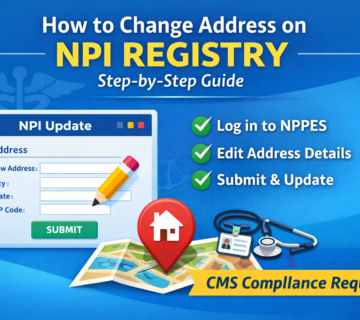
Step 1: Access the NPPES System
- Visit the official NPPES website: https://nppes.cms.hhs.gov.
- Log in using your Identity & Access (I&A) credentials associated with your NPI.
Step 2: Navigate to the Correct NPI
- If you manage multiple NPIs (e.g., for group practices or multiple providers), select the correct NPI number from your dashboard.
Step 3: Initiate the Change
- Locate the “Edit” option or pencil icon next to the NPI record to begin the update process.
Step 4: Modify the Required Information
- Navigate through the available tabs, such as:
- Address Information
- Taxonomy
- Licensure
- Contact Details
- Enter the updated data carefully, ensuring accuracy before proceeding.
Step 5: Certify and Submit
- Review all changes thoroughly.
- Certify that the information provided is accurate and truthful.
- Click Submit to complete your update.
Troubleshooting and Common Issues
Forgotten Login Credentials
- Use the “Forgot User ID” or “Forgot Password” options on the login page.
- Contact the CMS I&A Help Desk for further assistance.
Processing Time for Updates
- Most updates are reflected within 24 hours of submission. However, high system volume may cause slight delays.
Paper Submission Options
- While online updates are recommended, CMS provides paper forms for those unable to access the NPPES portal. Note that paper submissions take significantly longer to process.
Keep Your Provider Profile Current
Summary
Updating your NPI information is simple when broken down into five steps:
- Log in to NPPES.
- Select the correct NPI.
- Edit the necessary fields.
- Review and certify the data.
- Submit the update.
Regular updates ensure CMS compliance, accurate billing, and uninterrupted patient access.
Call to Action
Don’t wait for a denied claim or credentialing issue. Log in to the NPPES system today to verify your information and confirm everything is up to date.
Resources
For advanced scenarios or technical assistance, refer to:

No comment